SLAM_mapping_template
Overview
Creates a mapping template ready for copy and paste into a spreadsheet to use in data mapping work. The template is based on the latest field metadata for the object. The list of fields returned represents all fields on the objects, but some attributes may be subject to Salesforce permissions.
When copying the output for pasting into a spreadsheet, SQL Server Management Studio allows for the copying of the column headers with the data (right click and choose "Copy with Headers"). Doing this transfers all the column headings in the spreadsheet.
Out-of-the-box, three additional "empty" fields are added to the front of the output. These can then be used to added the source system table and field names along with any transformation required
Parameters
| Name | Type | Default | Description |
|---|---|---|---|
@sObjects | VARCHAR(MAX) | NULL | Comma-separated list of sObjects to generate the template for. When NULL, generates for every sObject in the org. |
@dialect | NVARCHAR(50) | 'Excel' | Modifies rendering of values for different destinations. Possible values: 'Excel', 'GSheets' |
@table_name | NVARCHAR(120) | NULL | Optional destination table. When provided, the template is persisted to this table (with ORDER BY applied on a final SELECT) instead of (only) being returned to the client. |
@exists_action | VARCHAR(20) | SLAM_Settings.default_exists_action | Controls the behavior when the destination table name, specified by @table_name is already used. If NULL, uses the value from SLAM_Settings.default_exists_action (defaulted to 'drop' during initial setup).Valid options:
|
Customizing Mapping Templates
The output of the SLAM_mapping_template command can be configured to meet custom needs, both in terms of the outputted columns and row order.
Customizing Output Columns
The output columns and relative position are customizable by modifying the data in SLAM_Settings.mapping_template_columns. The out-of-the-box configuration suppresses many Salesforce fields that may be of interest to you. The distinction between the desc.* and part.* fields are described in SLAM_data_dictionary
You can retrieve the current configuration by running the query below. Note it is recommended to enable the "Retain CR/LF on copy or save" option within SSMS (Tools->Options: Query Results/SQL Server/Results to Grid: Retain CR/LF on copy or save. Then open a new query window.)
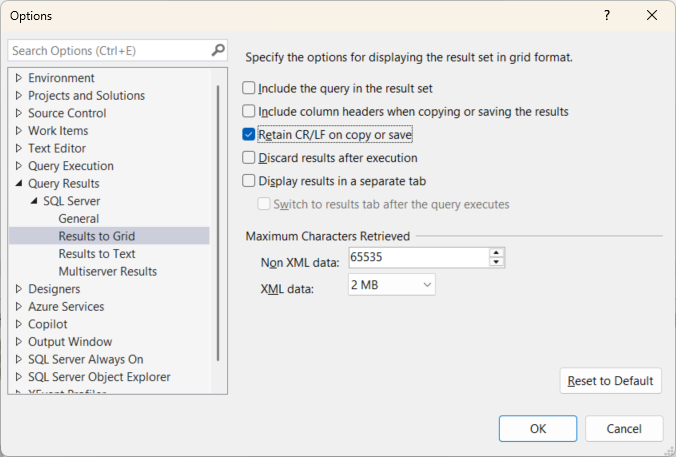
SELECT mapping_template_columns FROM SLAM_Settings
You can set a new configuration by running the query below. This content becomes the "field select" clause of a SQL query and must therefore be a valid SQL clause. Single quotes must be properly escaped during the UPDATE statement as demonstrated in the example below (e.g. replace each ' with '').
UPDATE SLAM_Settings SET mapping_template_columns = '
    ''''                                 AS [Source Column Name]
   ,''''                                 AS [Transformation]
   ,''''                                 AS [Mapping Status]
   ,[sObject]                            AS [sObject]
   ,[Name]                               AS [Field Name]
   ,[part.Label]                         AS [Field Label]
-- add additional fields
'
Customizing Row Order
The row order are customizable by modifying the data in SLAM_Settings.mapping_template_orderby.
You can retrieve the current configuration by running the query below
SELECT mapping_template_orderby FROM SLAM_Settings
You can set a new configuration by running the query below. This content becomes the "ORDER BY" clause of a SQL query and must therefore be a valid SQL clause. Single quotes must be properly escaped during the UPDATE statement as demonstrated in the example below (e.g. replace each ' with '').
-- an alternate ordering that prefers required and custom fields, secondarily sorting by type
UPDATE SLAM_Settings SET mapping_template_orderby = '
CASE WHEN [Name] = ''Id'' THEN 0
     WHEN [Required] IN (''X'', ''TRUE'') THEN 1
     WHEN [desc.custom] IN (''X'', ''TRUE'') OR [Name] LIKE ''%[_][_]c'' THEN 2
     WHEN [desc.custom] = ''UNKNOWN'' THEN 3
     ELSE 4
END,
CASE WHEN [part.DataType]=''reference'' THEN ''0''
     WHEN [part.DataType]=''string'' THEN ''1''
     WHEN [part.DataType]=''picklist'' THEN ''2''
     WHEN [part.DataType]=''multipicklist'' THEN ''3''
     ELSE [part.DataType]
END,
[Name]'
Usage Examples
Retrieve mapping template for pasting into Excel
EXEC dbo.SLAM_mapping_template
    @sObjects = 'Account',
    @dialect = 'Excel'
Retrieve mapping template for pasting into Google Sheets
EXEC dbo.SLAM_mapping_template
    @sObjects = 'Account',
    @dialect = 'GSheets'
Retrieve a mapping template for multiple objects
EXEC dbo.SLAM_mapping_template
    @sObjects = 'Account,Contact,Opportunity'
Persist the template into a table (drop if it already exists)
EXEC dbo.SLAM_mapping_template
    @sObjects = 'Account',
    @table_name = 'Account_Mapping',
    @exists_action = 'drop'
When @table_name is supplied, the values configured in SLAM_Settings.mapping_template_orderby must reference column aliases that exist in SLAM_Settings.mapping_template_columns. If the ORDER BY references a column that is not selected into the output table, the procedure raises an error and lists the available output columns.